Settings
 Fast Delivery
 Free Shipping
 Incoterms
 Payment Types


 Marketplace Product

Creating Docker Instances
2026-05-18 | By Andrew Kazour
Overview
In this post, I will show how I made a static web server using Docker and Docker Compose. All steps documented below allow a peer to recreate the environment from scratch on an Ubuntu virtual machine.
- I demonstrate how to create 5 containers to which you can connect and have different services running on each of them
Docker is a great way to run services in an isolated manner to allow for security and a good way to test services.
Creating the Ubuntu Instance (AWS)
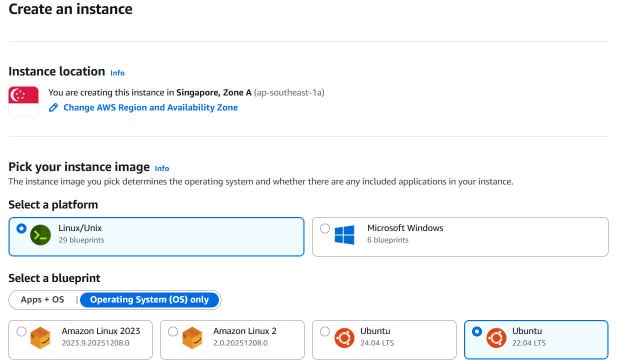
An Ubuntu Server virtual machine was created using Amazon Web Services (AWS). The instance was configured with the OS only and on Ubuntu 22.04:
Dual stack is selected with the 90-day free trial hardware selection:
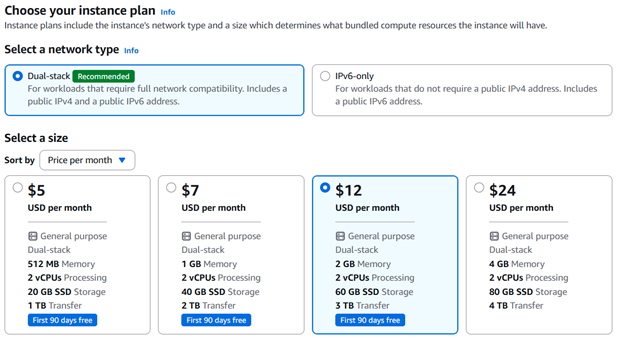
I am a really big fan of AWS, as it is easy to use, and they give free trials for everything, so you will know if you want to continue using it or not. It’s also relatively low cost, as 5 dollars a month isn't a big expense.
Change Network settings
Go to the Network tab and add a rule to the IPv4 to allow for all TCP traffic. This is so you will be able to connect to your web service and not be blocked by the firewall:
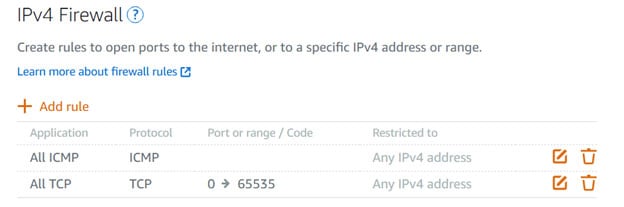
When I was setting this up, I ended up not changing the TCP settings, which meant I couldn't connect to it since it blocked all connections! After that, I opened all ports, which isn't the most secure, but for this basic use, it is fine.
Docker setup and installation
Docker was installed following the official Docker documentation for Ubuntu to ensure compatibility and stability.
Step 1: Update package index and install prerequisites
sudo apt-get update
sudo apt-get install -y ca-certificates curl
Step 2: Add Docker’s official GPG key
sudo install -m 0755 -d /etc/apt/keyrings
sudo curl -fsSL https://download.docker.com/linux/ubuntu/gpg -o /etc/apt/keyrings/docker.asc
sudo chmod a+r /etc/apt/keyrings/docker.asc
Step 3: Add Docker repository to APT sources
echo \
  "deb [arch=$(dpkg --print-architecture) \
  signed-by=/etc/apt/keyrings/docker.asc] \
  https://download.docker.com/linux/ubuntu \
  $(. /etc/os-release && echo "$VERSION_CODENAME") stable" | \
  sudo tee /etc/apt/sources.list.d/docker.list > /dev/null
sudo apt-get update
Step 4: Install Docker Engine and required components
sudo apt-get install -y docker-ce docker-ce-cli containerd.io docker-buildx-plugin docker-compose-plugin
Step 5: Verify Docker installation
sudo docker run hello-world
A successful message confirms Docker was installed correctly, and then you can go on to the final steps.
Step 6: Post Docker steps
To allow Docker commands to be run without sudo, the following steps are performed:
sudo groupadd docker
sudo gpasswd -a $USER docker
newgrp docker
Step 7: Docker Compose steps
Docker Compose needs to be enabled:
sudo curl -L \
"https://github.com/docker/compose/releases/download/1.29.2/docker-compose-$(uname -s)-$(uname -m)" \
-o /usr/local/bin/docker-compose
sudo chmod +x /usr/local/bin/docker-compose
Verification:
docker-compose --version
If this verification step shows a version, then you have completed the setup of Docker!
Docker is best run on Linux, which is why we went through a VM with Ubuntu. I have tried using Docker on Windows, but it just isn’t as good and doesn’t give me the same results.
Nginx Server in a Custom Container
Static Website Preparation
The static website files were organized in a clear directory structure:
- index.html as the main entry point
- Additional assets stored in appropriate subdirectories
You can make any website or service you want to run. I just made a quick sample website that allowed me to see that Docker was working.
Docker File creation
A Dockerfile is created in the root directory of the project with this inside it:
FROM nginx:stable-alpine
COPY ./usr/share/nginx/html
EXPOSE 80
CMD ["nginx", "-g", "daemon off;"]
This Dockerfile:
- Uses a Nginx base image
- Copies website files into the container
- Exposes port 80
- Runs Nginx in the foreground
Build the Container Image
docker build -t my-nginx-container
Verification that it was built properly:
docker image lsRun this first container
docker run -p 8080:80 my-nginx-container
- Test it using a web browser
These are the final steps in setting up one container to run whatever you want. Below this, I will show running 5 containers, which could be a better use case for a lot of people.
Replicating 5 Identical Containers
Overview
We have to make a Docker Compose file to run multiple Docker containers at once! The file below shows how I made 5 containers, where they all use the same index.html file. All the containers are on separate ports and can be used for redundancy of a website.
docker-compose.yml (Identical Services)
services:

  web1:

    image: my-nginx-container

    container_name: web1

    ports:

      - "8081:80"

    volumes:

      - ./index.html:/usr/share/nginx/html/index.html:ro


  web2:

    image: my-nginx-container

    container_name: web2

    ports:

      - "8082:80"

    volumes:

      - ./index.html:/usr/share/nginx/html/index.html:ro


  web3:

    image: my-nginx-container

    container_name: web3

    ports:

      - "8083:80"

    volumes:

      - ./index.html:/usr/share/nginx/html/index.html:ro


  web4:

    image: my-nginx-container

    container_name: web4

    ports:

      - "8084:80"

    volumes:

      - ./index.html:/usr/share/nginx/html/index.html:ro


  web5:

    image: my-nginx-container

    container_name: web5

    ports:

      - "8085:80"

    volumes:

      - ./index.html:/usr/share/nginx/html/index.html:ro
Run the Services
docker compose up -d
To close the service, use this:
docker compose down
Verification:
docker compose ps
Each container serves identical content on different ports.
Replicating 5 unique Containers
Overview
We can now edit the Docker compose file to run unique services on each container. This is almost the exact same as the last one, but we have to change the index.html file for each service.
docker-compose-unique.yml (Unique Services)
The creation of the unique service using the same compose file layout, except with a change to the directory structure:
volumes:
- ./index.html:/usr/share/nginx/html/index.html:ro
Change the index.html to a different service for each container (index2.html, Wikipedia.html, etc.). This will map the service you put in the path to the port in that same set.
Run the Services
docker compose -f docker-compose-unique.yml up -d
To close the service, use this:
docker compose -f docker-compose-unique.yml down
Verification:
You can verify it worked by testing with the “curl” command. When you send the command, it will show the HTML code of the specific service you have in that port. Change the ports to whatever ports you used.
curl localhost:8081
curl localhost:8082
curl localhost:8083
curl localhost:8084
Accessing the website
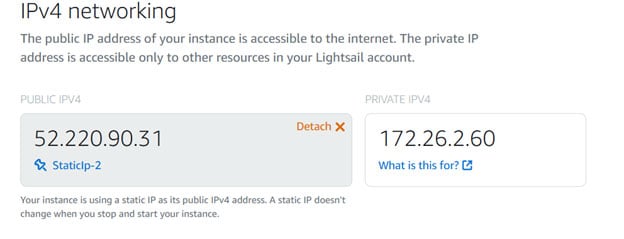
To access the website, you must use the public IPV4 address and the port the website is on. This could look something like:
http:\\52.220.90.31:8080
You can find the public IPV4 address on AWS Lightsail, and then you use the port you put in the Docker Compose files. You will want to make sure you click the button to make it static, so if you restart an Ubuntu instance, you don't have to get a whole new IP to access it. I didn't make it static at first, and it caused me a headache!
Conclusion of the container creation
Using this setup guide, you will be able to create a Docker and Docker Compose file to create containers for your services. You will be able to create multiple web services based on the number of services you have, as well as ports.